 Cinepark
Groovy 70s FreeDefault
The default look. A warm 70s sunburst in brown, orange and gold, with chunky rounded keys that press down like the real thing.
A video player with a retro feel.
Cinepark was born out of nostalgia for drive-in movie nights: a warm summer evening, the big screen glowing under the stars, the hum of an old projector. It brings a little of that feeling to the videos on your device, with chunky deck-style keys and themes inspired by the gear of decades past. Ad-free, no tracking, and it plays your files offline.
Coming soon toGoogle Play In closed testing right now. Thanks for your patience!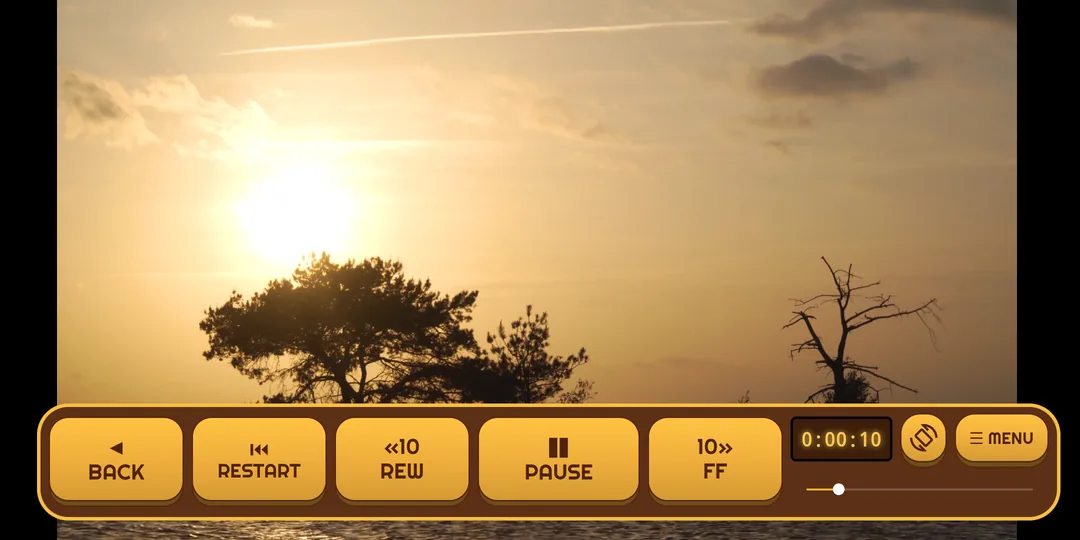
Plays the videos on your device. No account, no ads, no analytics, nothing uploaded.
Switch audio tracks and built-in subtitles, or load your own .srt file.
Keep watching in a small window while you use another app.
From Groovy 70s to Retro Terminal, with three free to start.
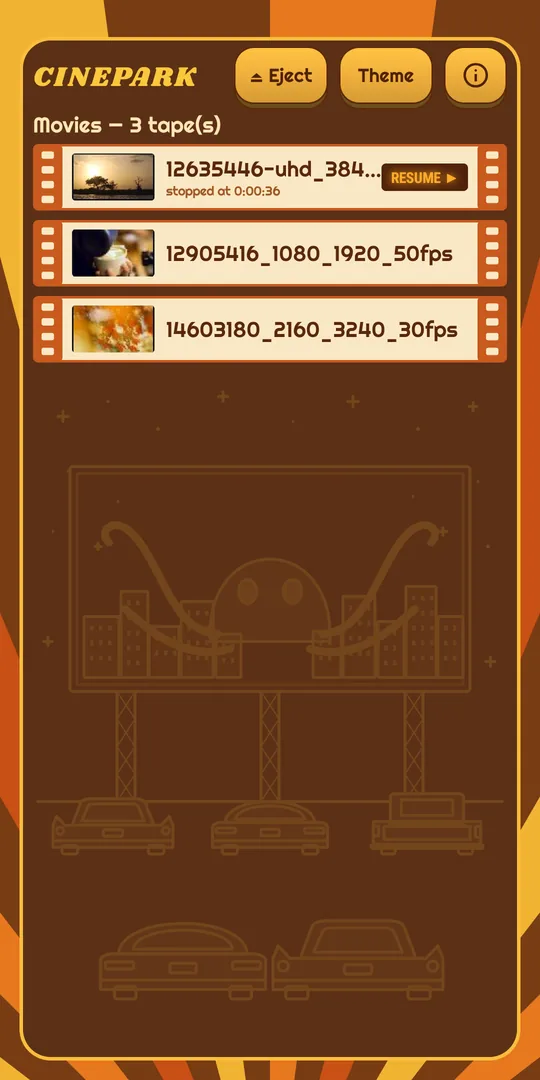
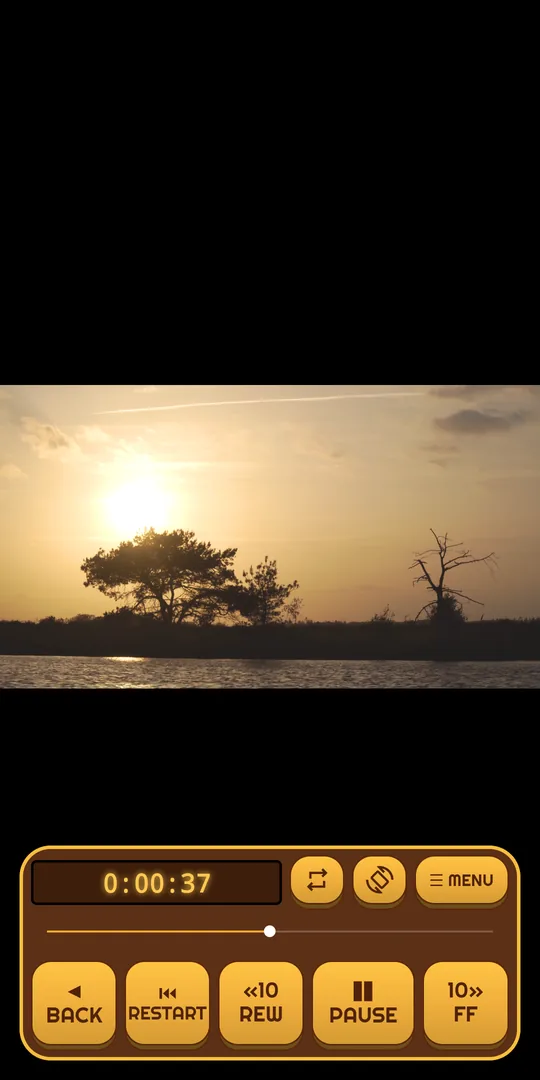
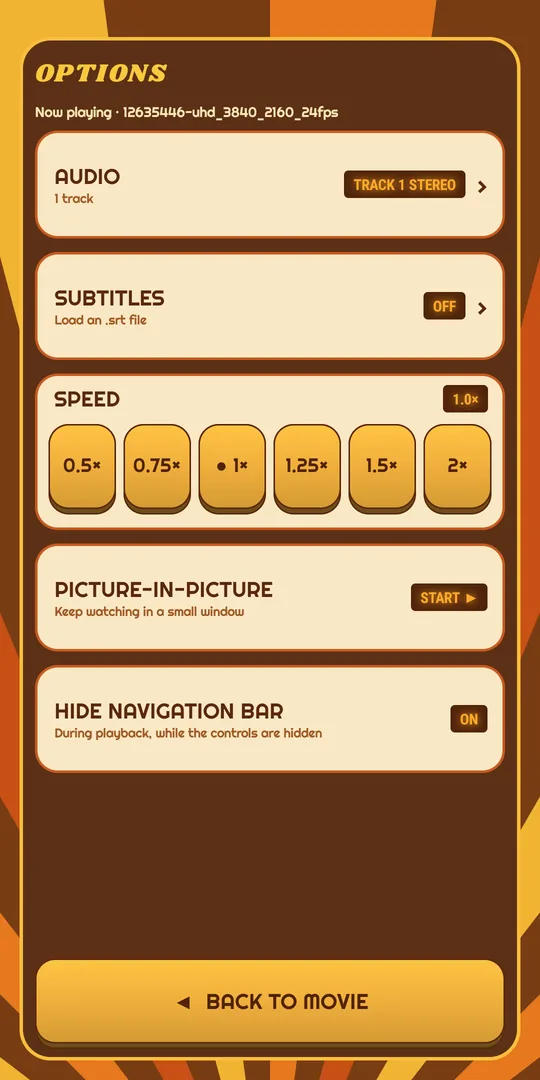
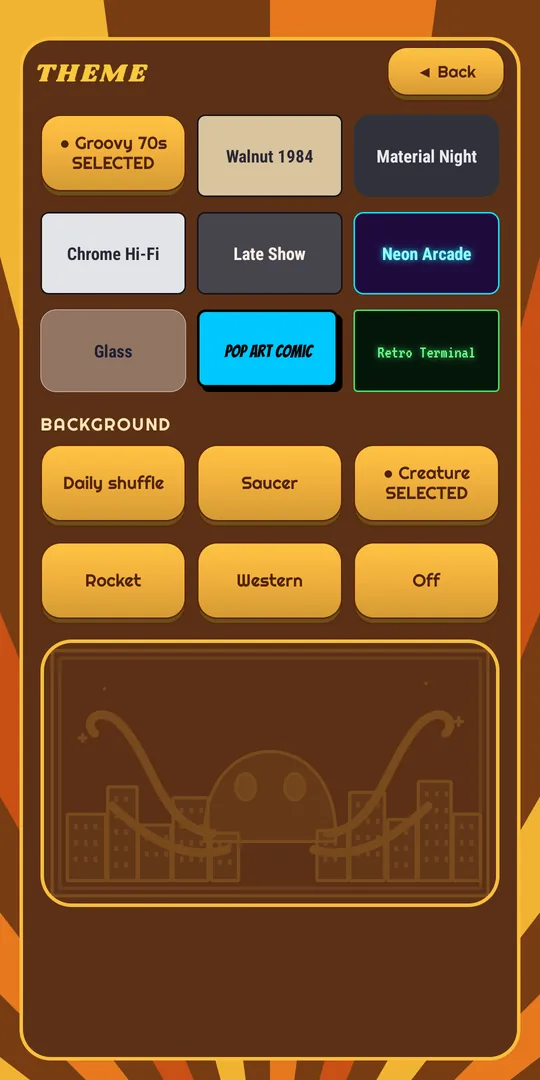
Each theme restyles the whole app: the file list, the player keys, the menus and even the fonts. The picture itself is never tinted or filtered.
The default look. A warm 70s sunburst in brown, orange and gold, with chunky rounded keys that press down like the real thing.
A wood-grain cabinet with cream lettering and amber lights, like a home video deck from the 1980s.
A calm, modern dark look: soft rounded keys, a teal accent and no fuss.
Brushed metal and a mint-green display, inspired by hi-fi stacks.
Near-black panels, a glowing orange title and fine scanlines on the controls, made for late-night viewing.
A synthwave sunset over a neon grid, with glowing cyan keys and a pink neon title.
See-through frosted panels and keys floating over soft glowing colours.
Bright yellow halftone dots, white comic panels with bold black shadows, and comic-book lettering.
Phosphor green on black, a pixel font, glowing outlines and scanlines, like an old computer monitor.
Most questions about video players come down to file formats. Here’s what to check first.
Cinepark lists files ending in .mp4, .m4v, .mkv, .webm, .mov, .3gp and .ts.
To decode them, it uses the video and audio decoders built into your device, so what plays depends a little on your phone or tablet. The safest combination is H.264 video with AAC audio, which practically every Android device plays. Most devices also handle H.265 (HEVC) and VP9, and newer ones AV1, though very high resolutions can be too much for some.
For audio, AAC, MP3, Opus, Vorbis and FLAC play almost everywhere. Dolby (AC-3, E-AC-3), DTS and TrueHD only play on devices that include those decoders.
Files ending in .avi, .wmv, .flv, .vob or .m2ts aren’t supported and don’t appear in the list.
Cinepark doesn’t bundle its own decoders. It relies on the ones in your device and shows this message when they can’t handle a file. The line under it says what’s missing, for example “Video: HEVC 10-bit (H.265), 4K HDR (too demanding for this device)” or “Audio: DTS”.
Common reasons:
The fix: convert the file on a computer with a free tool such as HandBrake. Its standard presets make an MP4 with H.264 video and AAC audio, which plays almost anywhere.
Open ☰ MENU → Audio and pick another track. Movies often carry several audio tracks, and some of them (often Dolby Digital, DTS or TrueHD) may be marked “Not supported on this device”. If no track works, convert the audio to AAC with HandBrake (see above).
Also check your device’s media volume, and whether the sound went to Bluetooth headphones or a speaker.
Subtitles built into the video file (common in .mkv) appear under ☰ MENU → Subtitles, where you can switch between them or turn them off.
You can also load a separate subtitle file from your device with + Load .srt file. SubRip (.srt) works best; WebVTT (.vtt) and SubStation (.ass, .ssa) files load too, though fancy styling may be simplified. A loaded file applies to the video that’s playing.
Subtitles out of sync? The file was probably made for a different version of the video. Look for one that matches your file’s exact release and running time.
Cinepark shows the videos inside the one folder you choose with ⏏ Eject. A few things to check:
You can also open a single video straight from your Files app with Open with → Cinepark.
Since Android 11, Android’s own folder picker won’t let any app use the Download folder itself, the root of internal storage, or Android/data. The Use this folder button is greyed out there. This is an Android rule, not a Cinepark one.
Workarounds:
Download/Movies), move your videos there and pick that folder. Subfolders work fine.No. Cinepark doesn’t play in the background, which keeps it light on battery. Picture-in-picture is there instead: press Home while a video is playing and it shrinks into a small window, or start it from ☰ MENU.
You don’t need a connection to watch. The only time it goes online is when Google Play handles a purchase. Cinepark has no account, no ads, no analytics and no crash reporting. Thumbnails, your last resume position and your theme choice stay on your device. Details are in the privacy policy.
Install Cinepark from Google Play while signed in with the Google account you used to buy it. Google Play keeps track of your purchases, so the Theme Pack becomes available again. If it doesn’t show up, check that the Play Store is using the right account, then reopen Cinepark.
Purchases are made through Google Play, so refunds follow Google Play’s refund policies, and you can request one through Google Play. You can also email support@wieldsome.com and we’ll do our best to help.
Email support@wieldsome.com. It helps to mention your device model, your Android version and the line shown under the error message, if there is one.